

Use this computer-focused guide to troubleshoot wireless printer setup, router connection problems, OfficeJet and LaserJet WiFi issues, and HP Smart app printer detection errors.
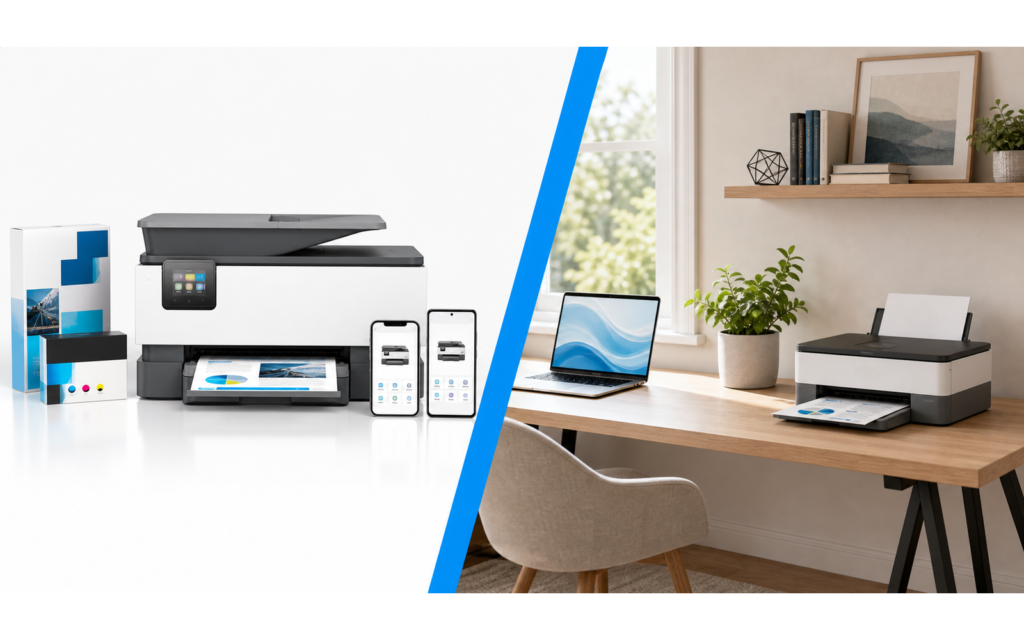
A printer that will not connect to WiFi can stop printing, scanning, software setup, and HP Smart app detection on your computer. In many cases, the printer itself is not physically broken. The issue is often related to the wireless network, router settings, driver installation, printer IP address, or the way the printer was added to Windows or macOS.
This guide focuses on remote-friendly software and setup issues, including printer not connecting to WiFi, printer not connecting to router, printer connected to WiFi but not printing, and HP Smart app not finding the printer on a computer.
Before you begin: Keep your WiFi name, WiFi password, computer, printer, and router nearby. If your printer has a display panel, make sure it is powered on
Common Causes of Printer Not Connecting to WiFi
- The printer is trying to connect to the wrong WiFi network.
- The WiFi password was changed after router replacement or reset.
- The computer and printer are connected to different networks.
- The router signal is weak near the printer location.
- The printer is connected to a guest network or extender network with limited access.
- The printer driver or HP Smart app cannot detect the printer during setup.
- The printer IP address changed after a router update or restart.
- The printer supports only 2.4GHz WiFi while the router is using 5GHz-only settings.
Step-by-Step Methods to Fix Printer WiFi or Router Connection Issues
-
Restart the printer, router, and computer.
Turn off the printer, restart the router, and restart your Windows PC or Mac. Wait until the router is fully online, then power the printer back on and try setup again.
-
Confirm the printer and computer are on the same network.
Check the WiFi name on your computer and compare it with the network selected on the printer. Avoid guest WiFi networks because they may block printer discovery.
-
Move the printer closer to the router.
A weak signal can cause printer setup failed messages, printer offline errors, or HP Smart app not detecting printer issues. Test setup within a few feet of the router first.
-
Reconnect the printer to WiFi from the control panel.
Open wireless settings on the printer, choose the correct router name, and enter the WiFi password carefully. If available, print a wireless network test report.
-
Check 2.4GHz and 5GHz router settings.
Many printers connect more reliably to 2.4GHz WiFi. If your router combines both bands under one name, try temporarily separating the 2.4GHz and 5GHz network names during setup.
-
Remove and re-add the printer on Windows or Mac.
On Windows, open Printers & scanners and remove the old printer entry. On Mac, open Printers & Scanners and delete the printer. Then add it again after reconnecting to WiFi.
-
Update or reinstall printer software.
If the printer driver is unavailable, setup fails, or the printer is not found on the network, install the current printer software from the manufacturer’s official support site.
-
Try HP Smart app setup again.
If HP Smart app is stuck on printer setup or unable to add printer, close the app, restart the computer, confirm the printer is on the same WiFi, and run add printer again.
Other Issues Covered by This Troubleshooting Article
| Printer not connecting to WiFi | Printer not connecting to wireless network |
| Printer not connecting to router | Printer unable to connect to router |
| Printer cannot find router | Printer not connecting to WiFi extender |
| Printer not connecting to new router | Printer not connecting after router change |
| Printer not connecting after router reset | Printer not connecting after WiFi password change |
| Printer not connecting to 2.4GHz WiFi | Printer not connecting to 5GHz WiFi |
| Printer connected to router but not printing | Printer connected to WiFi but not printing |
| Printer IP address issue on router | Printer and computer on different networks |
| OfficeJet printer WiFi setup | LaserJet printer WiFi setup |
| HP Smart app cannot connect printer to WiFi | HP Smart app stuck on router connection |
When the Printer Connects to WiFi But Still Will Not Print
If the printer connects to the router but your computer still cannot print, the wireless connection may be working while the computer setup is incomplete. Check whether the printer appears as offline, whether the wrong printer is selected as default, or whether a previous USB or network printer entry is still installed.
Clearing the print queue, reinstalling the driver, and adding the printer again by network discovery can often fix a printer connected to WiFi but not printing from Windows or Mac.
FAQ: Printer Not Connecting to WiFi or Router
Why is my printer not connecting to WiFi?
The most common reasons are an incorrect WiFi password, weak router signal, router band compatibility, outdated printer software, or the printer and computer being on different networks.
Why is my printer not connecting after a router change?
After a router change, the WiFi name, password, security type, or IP address range may be different. Reconnect the printer to the new router and add it again on your computer.
Why does HP Smart app not find my printer?
HP Smart may not find the printer if the printer is on a different network, the computer is using a VPN, the router blocks device discovery, or the printer setup mode has expired.
Should I use 2.4GHz or 5GHz WiFi for printer setup?
Many wireless printers work best on 2.4GHz WiFi because it has longer range and broader compatibility. If setup fails on a combined network, try a dedicated 2.4GHz network name.
Can this issue be fixed remotely?
Many WiFi, router, driver, HP Smart app, Windows, and Mac printer setup issues can be reviewed remotely. Physical problems such as paper jams, damaged parts, cartridge errors, or power failures may require hands-on service.